
Desk Height
Spending hours working at a computer can gradually lead to wrist discomfort, shoulder tension, and fatigue. These problems are common among office workers, remote employees, students, designers, programmers, and anyone who performs repetitive computer tasks. Although several factors can contribute to discomfort, an incorrectly adjusted desk and keyboard are important workstation issues worth addressing.
Learning how to adjust desk height to reduce wrist and shoulder strain can help you maintain a more comfortable working position. The goal is to keep your shoulders relaxed, elbows close to your body, and wrists aligned with your forearms while typing or using a mouse.
According to the US Occupational Safety and Health Administration (OSHA), desks and keyboards positioned too high or too low can encourage awkward arm and wrist postures. Appropriate workstation adjustments can help reduce these exposures and support more neutral body positioning.
Research published in 2025 also examined the effectiveness of ergonomic interventions for work-related musculoskeletal pain, highlighting the importance of evaluating workplace adjustments as part of a broader approach to musculoskeletal health.
However, no single desk height works for everyone. Your height, chair, arm length, keyboard design, and type of work all influence the ideal steps.
Why Is Correct Desk Height Important?
Desk height affects the relationship between your shoulders, elbows, wrists, and hands. When these body parts are poorly aligned, you may need to raise your shoulders, bend your wrists, reach forward, or maintain unnecessary muscle tension while working.
Over time, prolonged awkward positioning combined with repetitive movements and insufficient recovery may contribute to discomfort.
1. It helps reduce unnecessary shoulder tension
A desk that is too high may force you to lift your elbows or raise your shoulders to reach the keyboard. This can increase the effort required from muscles around the shoulders and neck.
Conversely, a desk that is too low may encourage you to lean forward or round your upper back to reach the keyboard comfortably.
Ideally, your shoulders should remain relaxed, with your upper arms hanging naturally beside your torso.
2. It encourages a neutral wrist position
Your wrists should remain approximately straight and aligned with your forearms while typing.
If the keyboard is too high, you may bend your wrists upward. If it is too low or positioned at an unsuitable angle, you may bend your wrists downward or sideways.
Maintaining a comfortable wrist position can reduce unnecessary mechanical stress during repetitive tasks.
3. It reduces reaching and awkward arm positions
A poorly organized desk may force you to reach repeatedly for a mouse, keyboard, phone, or frequently used equipment.
Repeated reaching can move your elbows away from your body and increase the effort required to support your arms.
OSHA recommends placing frequently used equipment within easy reach and positioning the keyboard and pointing device so that your elbows can remain close to your body.
4. It supports a more comfortable working routine
A suitable workstation makes it easier to change positions, move your arms, and take short breaks.
Remember that ergonomics is not simply about sitting perfectly still. Even a well-adjusted workstation cannot eliminate every physical demand associated with prolonged computer use.
What Is the Ideal Desk Height for Wrist and Shoulder Comfort?
There is no universal desk height that suits every individual.
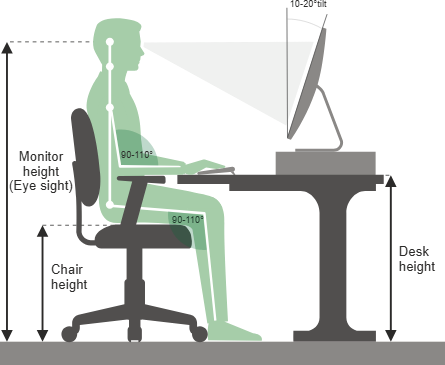
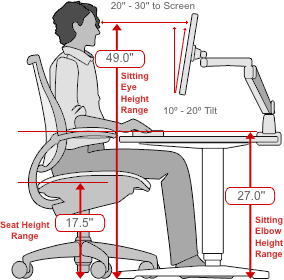
The most useful starting point is to position your keyboard near your seated elbow height, with your shoulders relaxed and your forearms approximately parallel to the floor.
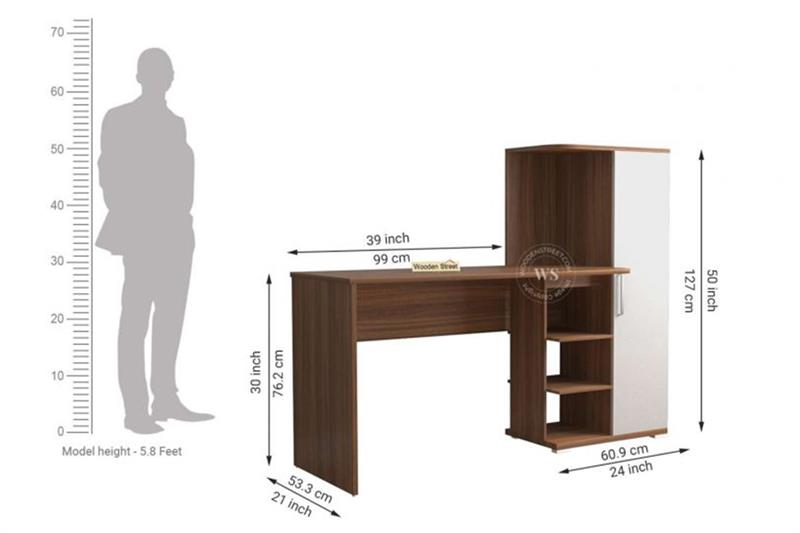
For many adults, a conventional desk around 28–30 inches (71–76 cm) high may be suitable, but this is only a general reference range—not a personalized ergonomic prescription.
Your correct working height may fall outside this range depending on your body dimensions, chair, keyboard thickness, and task requirements.
Signs that your desk height is appropriate
Check the following points while sitting in your normal working position:
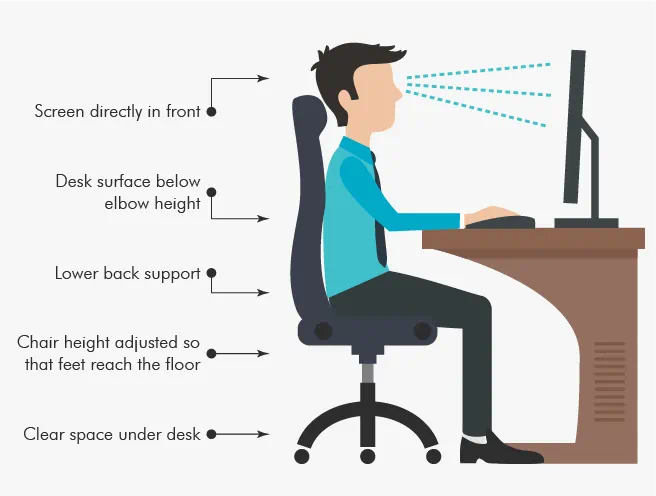
- Your shoulders are relaxed rather than raised toward your ears.
- Your elbows remain close to your body.
- Your elbows are bent at approximately 90–120 degrees, or another comfortable angle that allows relaxed shoulders and neutral wrists.
- Your forearms are approximately parallel to the floor.
- Your wrists remain straight while typing.
- Your feet rest comfortably on the floor or a suitable footrest.
- Your thighs have enough clearance beneath the desk.
- You can reach your keyboard and mouse without leaning forward.
These principles are consistent with OSHA’s computer workstation guidance.
Important: Do not choose your desk height based on a standard measurement alone. Judge the setup by how your body aligns with the keyboard and mouse.
How to Adjust Your Desk Height to Reduce Wrist and Shoulder Strain
Follow these steps to create a more comfortable workstation.
Step 1: Sit in your normal working position
Begin by sitting in your usual chair rather than standing beside the desk.
Move your hips toward the back of the seat and use the backrest for support. Keep your shoulders relaxed and your head comfortably aligned with your torso.
Avoid forcing yourself into an exaggeratedly upright position. Your goal is a relaxed, sustainable posture that allows natural movement.
Step 2: Adjust your chair height first
If your chair is adjustable, raise or lower it until your feet are supported and your knees are comfortably bent.
Your feet should rest flat on the floor whenever possible. If raising the chair is necessary to reach a high desk, use a stable footrest when your feet no longer reach the floor.
Check that your thighs are not pressed against the underside of the desk.
Why does chair height matter?
Your chair determines where your elbows sit relative to the desk. Adjusting the desk without considering the chair may solve one problem while creating another.
For example, raising the chair may bring your elbows into alignment with a fixed desk, but it can leave your feet unsupported. A footrest may solve the foot-support issue, provided there is sufficient space beneath the desk.
Step 3: Find your natural elbow height
Let your upper arms hang comfortably beside your torso.
Bend your elbows and position your forearms approximately parallel to the floor. Avoid raising your shoulders or stretching your arms forward.
Observe where your hands naturally fall.
This provides a useful reference for keyboard height.
The keyboard’s actual typing surface—not simply the top of the desk—should be positioned so that your wrists remain straight and your shoulders relaxed.
Step 4: Adjust the desk or keyboard surface
If your desk is height-adjustable, raise or lower it until the keyboard can be used comfortably.
If the desk is too high and cannot be adjusted, consider an adjustable keyboard tray that allows you to lower the keyboard and mouse.
If your desk is too low, a stable desk riser may help raise the working surface. Make sure the desk remains stable and that the monitor and other equipment can still be positioned appropriately.
Do not make improvised structural changes that could destabilize the desk.
Step 5: Position the keyboard correctly
Place the keyboard directly in front of you, close enough that your elbows remain near your body.
Avoid positioning it so far away that you must lean forward or extend your arms.
Keep the keyboard at a comfortable angle. Raising the rear keyboard feet can increase upward wrist bending for some users, so check your actual wrist position rather than assuming the feet should always be extended.
Your hands should move freely without pressing the wrists against a hard desk edge.
Step 6: Adjust your mouse position
Place the mouse beside the keyboard at approximately the same working height.
Keep it close enough to avoid reaching sideways. Your elbow should remain near your torso, and your shoulder should not need to lift to operate the mouse.
If your desk is crowded, remove unnecessary items or consider a suitable keyboard tray.
For people who use a mouse extensively, a closer position may be more helpful than purchasing expensive ergonomic accessories.
Step 7: Check your wrist alignment
Type a few sentences while observing your hands.
Your wrists should not bend noticeably upward, downward, or sideways. Avoid resting your wrists heavily on a hard desk edge while typing.
A padded palm rest may provide support during pauses, but it should not force your wrists into an uncomfortable position.
If the keyboard feels too high even after adjusting your chair, reconsider the desk height or use an adjustable tray.
Step 8: Recheck your monitor and legroom
After changing the desk or chair height, review the rest of your workstation.
Place your monitor directly in front of you, at a distance that allows comfortable viewing. OSHA recommends a viewing distance of at least 20 inches (approximately 50 cm), adjusted to your visual needs and screen size.
The screen should not force you to tilt your head backward or lean forward.
Also check that your knees, thighs, and feet have adequate clearance. A desk adjustment that improves your arms but restricts your legs is not a complete solution.
How to Adjust Desk Height When You Have a Fixed Desk
Many people cannot afford a height-adjustable desk or do not have enough room for one. Fortunately, several practical changes can improve the working position without replacing your furniture.
Use an adjustable keyboard tray
A keyboard tray can lower the keyboard and mouse independently of the main desk surface.
This may be particularly useful when a fixed desk is too high for your seated elbow position.
Choose a tray that provides sufficient space for both devices and does not interfere with your knees.
Use a footrest when needed
If you raise your chair to bring your elbows closer to the keyboard, your feet may no longer rest comfortably on the floor.
A stable footrest can support your feet and help you maintain a comfortable seated position.
Avoid unstable stacks of objects that could slide or tip.
Raise a desk that is too low
If your working surface is too low, stable risers designed for the desk may help.
After raising it, confirm that the desk remains level and stable and that the keyboard, mouse, and monitor can all be used comfortably.
Consider a separate keyboard for laptop users
Laptop keyboards and screens are attached to the same device. Raising the screen to a comfortable viewing height may also raise the keyboard too far.
For prolonged computer work, use an external keyboard and mouse with a laptop stand or a separate monitor.
This allows you to adjust the screen and hands independently.
Common Desk Height Mistakes That Increase Wrist and Shoulder Strain
Small setup errors can undermine an otherwise comfortable workstation.
Mistake 1: Raising the shoulders while typing
If your shoulders move upward when you type, your keyboard may be too high, your chair may be too low, or your armrests may interfere with your position.
Lower the keyboard or adjust your chair while ensuring that your feet remain supported.
Mistake 2: Bending the wrists upward
A keyboard placed too high or tilted steeply may encourage wrist extension.
Adjust the keyboard height and angle until your hands align comfortably with your forearms.
Mistake 3: Reaching too far for the mouse
A mouse positioned far from the keyboard encourages repeated reaching and may increase shoulder effort.
Move it closer and remove objects that prevent a comfortable arrangement.
Mistake 4: Resting the wrists against a hard edge
A sharp desk edge can create localized pressure on the forearms and wrists.
Move your hands slightly away from the edge, consider a rounded or padded surface, and avoid sustained pressure.
Mistake 5: Staying in one position for too long
A correctly adjusted workstation does not remove the need to move.
Prolonged static postures and repetitive movements can contribute to discomfort even when the furniture is appropriate.
Alternate tasks, take short movement breaks, and change positions regularly.
Should You Use a Standing Desk to Reduce Wrist and Shoulder Strain?
A standing desk can make it easier to alternate between sitting and standing, but it is not automatically better for everyone.
When standing, position the keyboard approximately at elbow height, with your shoulders relaxed and wrists straight. Your monitor should also remain at a comfortable viewing height.
Avoid raising the desk so high that you must lift your shoulders to type.
Likewise, standing continuously for long periods can cause discomfort in the feet, knees, hips, or back.
The Canadian Centre for Occupational Health and Safety recommends varying positions and ensuring that the workstation remains appropriately adjusted in both sitting and standing positions.
A practical approach is to alternate positions according to your comfort and work demands rather than following a rigid schedule that ignores your body’s response.
When Should You Adjust Your Desk Height?
You should review your desk setup:
- When you begin a new job or start working from home.
- After purchasing a new chair, desk, keyboard, or monitor.
- When you notice that your shoulders are repeatedly raised while typing.
- When your wrists feel bent or uncomfortable during computer work.
- When you find yourself leaning forward or reaching repeatedly.
- When discomfort develops during long working sessions.
- When you change between sitting and standing.
You may also need to readjust your workstation if several people share the same desk.
A workstation that suits one person’s body dimensions may not suit another’s.
Make small changes, test the position while performing your usual tasks, and reassess comfort over time.
What Does Recent Research Say About Workplace Ergonomics?
Ergonomic recommendations should be informed by research, but it is important to distinguish evidence that supports neutral positioning from evidence that proves a particular desk height prevents pain.
A systematic review and meta-analysis published in the Journal of Clinical Medicine in April 2025 evaluated ergonomic interventions for work-related musculoskeletal pain.
The review examined interventions such as workplace changes and ergonomic training. Its broader implication is that ergonomic interventions should be assessed in terms of actual health outcomes rather than assumed to work simply because equipment is labelled ergonomic.
The study does not establish one ideal desk height for every worker or prove that desk adjustment alone will eliminate wrist and shoulder pain.
OSHA’s workstation guidance provides more specific practical recommendations: maintain relaxed shoulders, keep elbows close to the body, align wrists with the forearms, position the keyboard at a suitable height, and avoid unnecessary reaching.
A 2025 scoping review of office layout research also examined how workstation design and the wider office environment may relate to worker health. This reinforces the value of considering the entire work environment rather than focusing exclusively on the desk.
Taken together, these sources support a sensible approach: adjust the workstation to the individual, reduce awkward positions, vary working postures, and assess whether the changes improve comfort.
How to Maintain a Wrist- and Shoulder-Friendly Workstation
Once you have adjusted your desk, use these habits to maintain a comfortable working environment.
Take regular movement breaks
Interrupt prolonged computer work with brief pauses. Stand up, walk, change tasks, or gently move your shoulders and hands.
OSHA’s computer workstation guidance suggests frequent short pauses and describes a five-minute break each hour as one option.
The best routine is one you can maintain consistently without disrupting necessary work.
Keep frequently used equipment nearby
Position your mouse, keyboard, phone, and notebook within easy reach.
Move rarely used items farther away if they crowd your primary working area.
Avoid excessive gripping
When using your mouse, hold it lightly rather than gripping it tightly. Use a comfortable pointer speed so you do not need repeated large arm movements.
Reassess your workstation after a few days
A setup that looks correct may not feel comfortable during actual work.
Notice whether your shoulders remain relaxed, whether your wrists stay straight, and whether you find yourself reaching or leaning forward.
Make one adjustment at a time so you can identify what helps.
When Should You Seek Professional Advice?
Desk adjustments can help address workplace factors that contribute to discomfort, but they cannot diagnose or treat every cause of wrist or shoulder pain.
Consult a qualified healthcare professional if your symptoms persist, worsen, interfere with normal activities, or repeatedly return despite workstation changes.
Seek prompt assessment for new or worsening numbness, tingling, weakness, loss of grip strength, or significant swelling. Severe pain after an injury or sudden neurological symptoms require urgent medical evaluation.
People with an existing musculoskeletal condition, previous injury, or disability may benefit from an individualized workstation assessment by an occupational therapist, physiotherapist, or appropriately trained ergonomics professional.
Frequently Asked Questions
1. What is the best desk height for wrist and shoulder pain?
The best desk height is the one that allows you to type with relaxed shoulders, elbows close to your body, and wrists aligned with your forearms. A conventional desk height of approximately 28–30 inches may suit some adults, but your body dimensions and equipment determine the appropriate height.
2. Should my elbows be higher or lower than the desk?
Your elbows should be positioned so that your forearms can reach the keyboard comfortably without raising your shoulders. The keyboard surface is the most useful reference, rather than the desktop alone.
3. Can a desk that is too high cause shoulder pain?
Yes. A desk that forces you to raise your shoulders or hold your arms away from your body can increase muscular effort and contribute to discomfort. Other factors may also be involved.
4. How can I reduce wrist strain without buying a new desk?
Adjust your chair, use a stable footrest if necessary, reposition your keyboard and mouse, and consider an adjustable keyboard tray. These changes may improve alignment without replacing the entire workstation.
5. Is an ergonomic keyboard necessary?
Not necessarily. A standard keyboard may be suitable if it allows comfortable typing with straight wrists. Alternative keyboards can help some people maintain a more comfortable position, but they are not guaranteed to prevent pain or injury.
6. Should I rest my wrists on a wrist pad while typing?
A palm rest can provide support during pauses, but avoid pressing your wrists against a hard surface while typing. The priority is maintaining comfortable wrist alignment and minimizing localized pressure.
7. Is standing while working better for shoulder health?
Standing can help you vary your position, but a standing desk does not automatically prevent shoulder pain. Its height must be adjusted correctly, and you should alternate positions rather than standing continuously.
8. How often should I check my desk setup?
Check your setup whenever your equipment changes or you notice discomfort, reaching, or awkward wrist positioning. Review it periodically, especially if you work at a computer for many hours each day.
Conclusion
Learning how to adjust desk height to reduce wrist and shoulder strain is a practical step toward a more comfortable working environment. The most important goal is not to achieve a particular measurement but to arrange your chair, desk, keyboard, mouse, and monitor so they work together.
Start by adjusting your chair, finding your natural elbow height, and positioning the keyboard so that your shoulders remain relaxed and wrists stay straight. Keep your mouse close, maintain adequate legroom, and use a footrest or adjustable keyboard tray when necessary.
Combine these adjustments with regular movement, task variation, and attention to persistent symptoms. Evidence and workplace guidance support reducing awkward postures and improving workstation fit, although no single adjustment guarantees freedom from pain.
A comfortable workstation is one that fits your body, supports your work, and allows you to change positions throughout the day.
References and Further Reading
Occupational Safety and Health Administration (OSHA)
Canadian Centre for Occupational Health and Safety (CCOHS).
Promoting the health of workers through office layout:
fatimaali3rocket@gmail.comhttps://healthandtechnologies.com